Your website
Edit your website yourself in the editor
In edit mode, you click an element of the page and touch it up yourself: its text, its style, its photo. Without going through the AI, and without using credits.
Switching to edit mode
- Click “Edit my page”, above your website.
- Click the element to change: it gets a green outline.
- A bar opens on the element: the “Ask to modify” field (for the AI), then the tools. The pencil for a text, the image icon for a photo, the link, the trash can, and the cross to close the bar.
A text
- Click in the text and rewrite it directly.
- Select a few words to make them bold, italic or underlined, change their color (“Text color”) or highlight them (“Highlight”).
An element’s style
The pencil in the bar opens the element’s style panel:
- Click the heading
- Open the pencil
- Center the heading
- Save
- Inner margins and Outer margins, in pixels, horizontally and vertically;
- Text size and Font weight;
- Text color and Background color (or no background);
- Alignment: left, centered, right or justified.
A photo
Click a photo: its panel opens, with three tabs to choose the image.

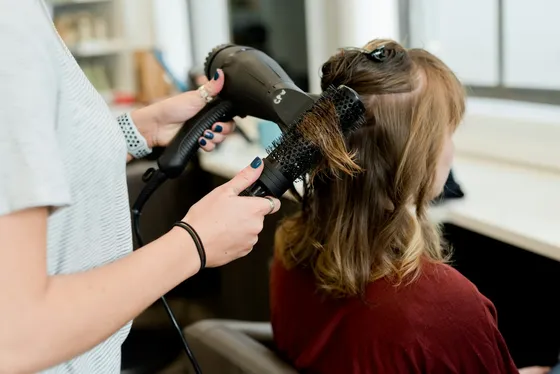
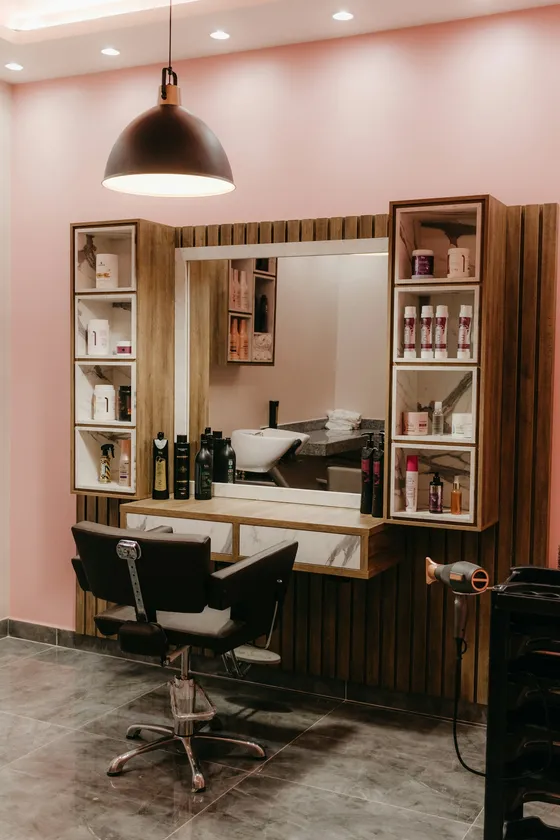

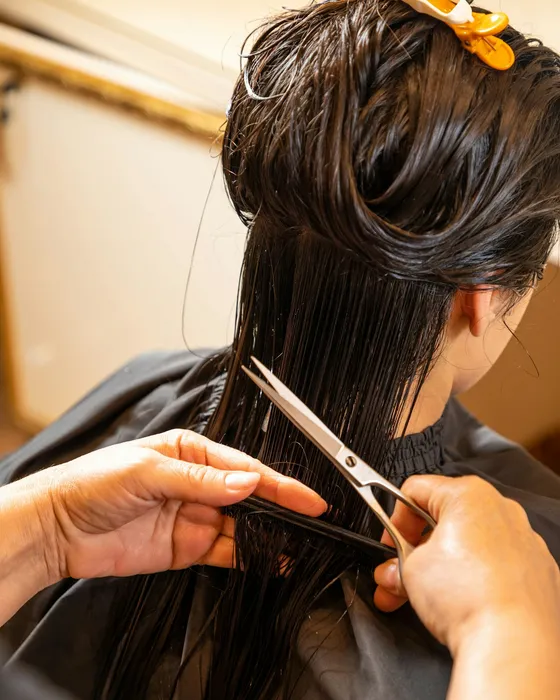
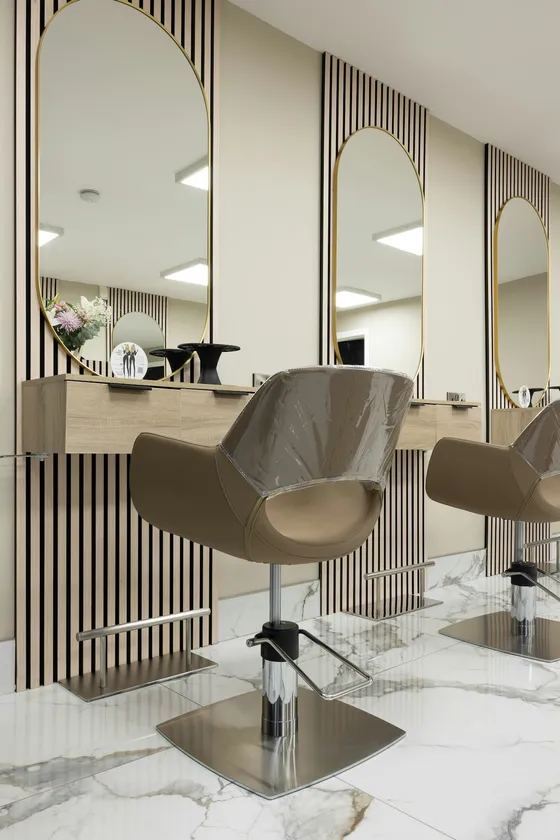
- Click the photo
- Choose a photo
- Save
- My photos: your website’s photos, including the ones collected when it was created from your Google Business Profile and your Instagram account. The photo on display has a check mark.
- Stock photos: royalty-free images. Describe what you are looking for, for example “Woman in profile, hair pulled back”.
- Upload: your own image, in JPEG, PNG, GIF, WebP or HEIC, 10 MB at most.
Below, set how it displays: the alt text (read by search engines and screen readers), the position, the object fit (“Fill (crop)”, “Contain (full)”, “Stretch” or “Original size”), the width and height, the border radius and the opacity.
Links, services, deleting
- The link in the bar points to a page of the website, a section, the booking block, a web address, an email address or a phone number. Check “Open in a new tab” if needed.
- The services block has its options: show images or not, how the list is laid out (“Automatic”, “Show everything” or “Compact”), the search bar and the “Most requested” block.
- The trash can removes the selected element, after confirmation.
Saving and leaving
As soon as you make a change, the bar shows “Unsaved changes” and the “Save” button turns green. Click it, then “Exit editing”.
If you leave without saving, the editor asks: “Leave edit mode?”. Choose “Save before leaving”, or “Yes, leave without saving” to drop your changes.
Saving doesn’t put the website live yet: for that, use the “Publish” menu (see Publishing your changes).
Your images and their rights
Images from the stock photos are credited automatically: a line giving the photographer’s name and Unsplash is added under the footer of the page that shows them. An illustration created by the AI is flagged the same way.
An image you add yourself is your responsibility: only use images you took, bought or are allowed to publish on your website. If its license asks you to credit its author, name them at the bottom of the page or in your legal notice.
Article updated on November 3, 2026.